
How to Convert ICS to PST Format? 3 Ways
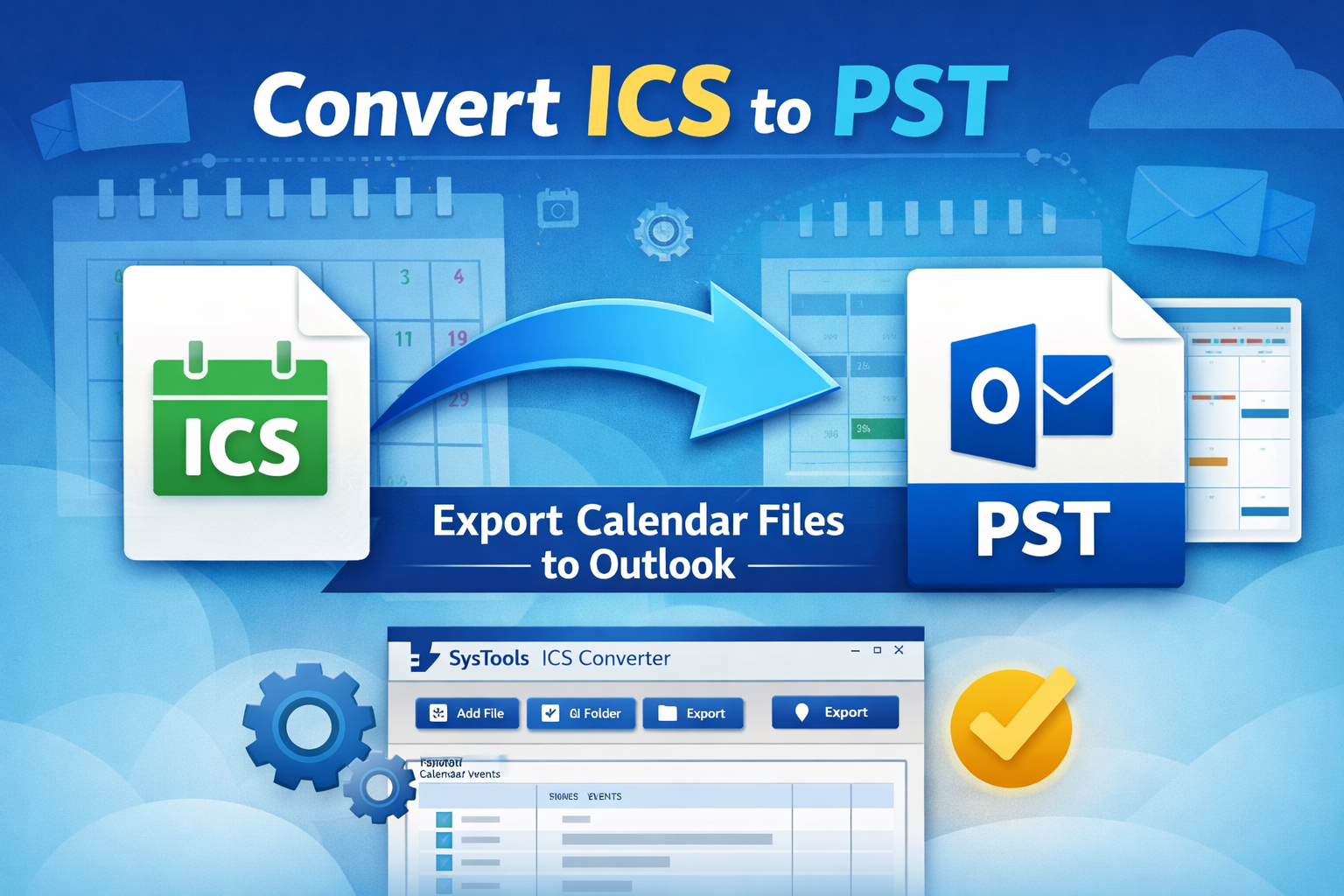
Calendar files play a crucial role in scheduling meetings, managing events, and coordinating tasks across platforms. The ICS (iCalendar) format is widely used by services like Google Calendar, Apple Calendar, and many email clients. However, Microsoft Outlook primarily works with PST (Personal Storage Table) files for storing emails, contacts, calendars, and other mailbox data. Because of this difference, users often need to convert ICS to PST to access their calendar information within Outlook.
Whether you are migrating to Outlook, consolidating data, or backing up schedules, converting ICS files ensures compatibility and long-term accessibility. This guide explains multiple methods, manual and automated, to help you successfully export ICS to PST, along with tips, limitations, and a professional solution for bulk conversion.
Understanding ICS and PST File Formats
Before starting the process to convert ICS to PST, it is important to understand what each format represents.
ICS (iCalendar) File:
-
Stores calendar events such as meetings, reminders, and appointments
-
Supported by Google Calendar, Apple Calendar, Thunderbird, and others
-
Can be shared and imported across different platforms
-
Typically contains event metadata like date, time, location, and description
PST (Personal Storage Table) File:
-
Outlook’s proprietary data file format
-
Stores emails, contacts, tasks, notes, and calendars
-
Used for backup, archiving, and data transfer in Outlook
-
Allows offline access to mailbox content
Since Outlook cannot directly store ICS data as PST without import or conversion, users must follow specific procedures to export ICS to PST effectively.
Method 1: Convert ICS to PST Using Outlook Import
Microsoft Outlook provides a built-in way to import ICS files into its calendar. Once imported, the data can be saved in a PST file.
Step 1: Import ICS File into Outlook Calendar:
-
Open Microsoft Outlook
-
Go to File > Open & Export > Import/Export
-
Choose Import an iCalendar (.ics) or vCalendar file (.vcs)
-
Browse and select the ICS file
-
Click the Open button
-
Choose Import to add events to your calendar
This step allows Outlook to read the ICS file and integrate its events.
Step 2: Save Calendar Data into PST:
-
Go to File > Account Settings > Account Settings
-
Select the Data Files tab
-
Add or choose an existing PST file
-
Move or copy the imported calendar items into that PST
Once completed, you successfully convert ICS to PST using Outlook’s native functionality.
Method 2: Use Drag-and-Drop Calendar Export to PST
Another manual approach involves copying calendar entries into a PST file. The steps are:
-
Create a new PST file in Outlook
-
Import the ICS file into the default calendar
-
Open Calendar view
-
Select all imported events (Ctrl + A)
-
Drag them into the calendar folder within the PST file
This method is simple and useful when dealing with a small number of events.
Limitations of Manual Methods
While manual techniques are free, they come with several drawbacks:
-
Not suitable for bulk ICS files
-
Time-consuming for large calendars
-
Risk of missing or duplicate events
-
No batch processing capability
-
Metadata may not transfer accurately
-
Requires Outlook installation
-
Complex for non-technical users
Because of these issues, many users prefer automated tools to transfer ICS to PST safely and efficiently.
Method 3: How to Convert ICS to PST Format? Automated Solution
For large-scale or professional requirements, an automated converter provides the most reliable results. A dedicated tool can process multiple ICS files at once, preserve data integrity, and eliminate manual effort. One effective solution is the SysTools ICS Converter Tool, which is designed specifically for calendar migration tasks. The steps are:
-
Install and launch the tool
-
Click Add File or Add Folder to load ICS files
-
Preview calendar events
-
Choose PST as the export format
-
Select destination location
-
Start the conversion process by clicking the Export option.
Key Features of this Tool
-
Bulk conversion of multiple ICS files
-
Direct export to PST format
-
Preserves event details (time zone, attachments, recurrence)
-
Maintains folder hierarchy
-
Supports large files without data loss
-
User-friendly interface
Within minutes, the tool will convert ICS to PST and generate a ready-to-use Outlook data file.
Why Choose an Automated Tool?
Automated solutions offer significant advantages over manual methods.
Efficiency: Batch processing saves hours of manual work, especially when handling hundreds of calendar files.
Accuracy: Professional tools preserve all event properties, including reminders, descriptions, and recurring patterns.
Safety: No risk of data corruption or accidental deletion during the conversion process.
Flexibility: You can export ICS to PST without needing Outlook installed in some cases.
Tips for a Successful Conversion
Follow these best practices to ensure smooth results:
-
Always create a backup of the original ICS files
-
Verify time zone settings before importing
-
Check for duplicate entries after conversion
-
Use a reliable tool for large datasets
-
Validate the PST file in Outlook after completion
These precautions help avoid common issues during the process.
Final Thoughts
Converting calendar data from ICS to PST is essential for anyone transitioning to Microsoft Outlook or centralizing scheduling information. While Outlook offers manual import options, they are best suited for small-scale tasks. For large migrations, batch processing, or guaranteed accuracy, automated solutions provide a far more efficient approach.
If you need a reliable way to convert ICS to PST, using a specialized tool ensures that all events, reminders, and metadata remain intact. Whether you want to export for backup purposes or for a full migration, choosing the right method depends on the volume of data and your technical comfort level.

 Turkish