
Import Multiple CSV Files into Excel Sheets: 6 Easy Methods
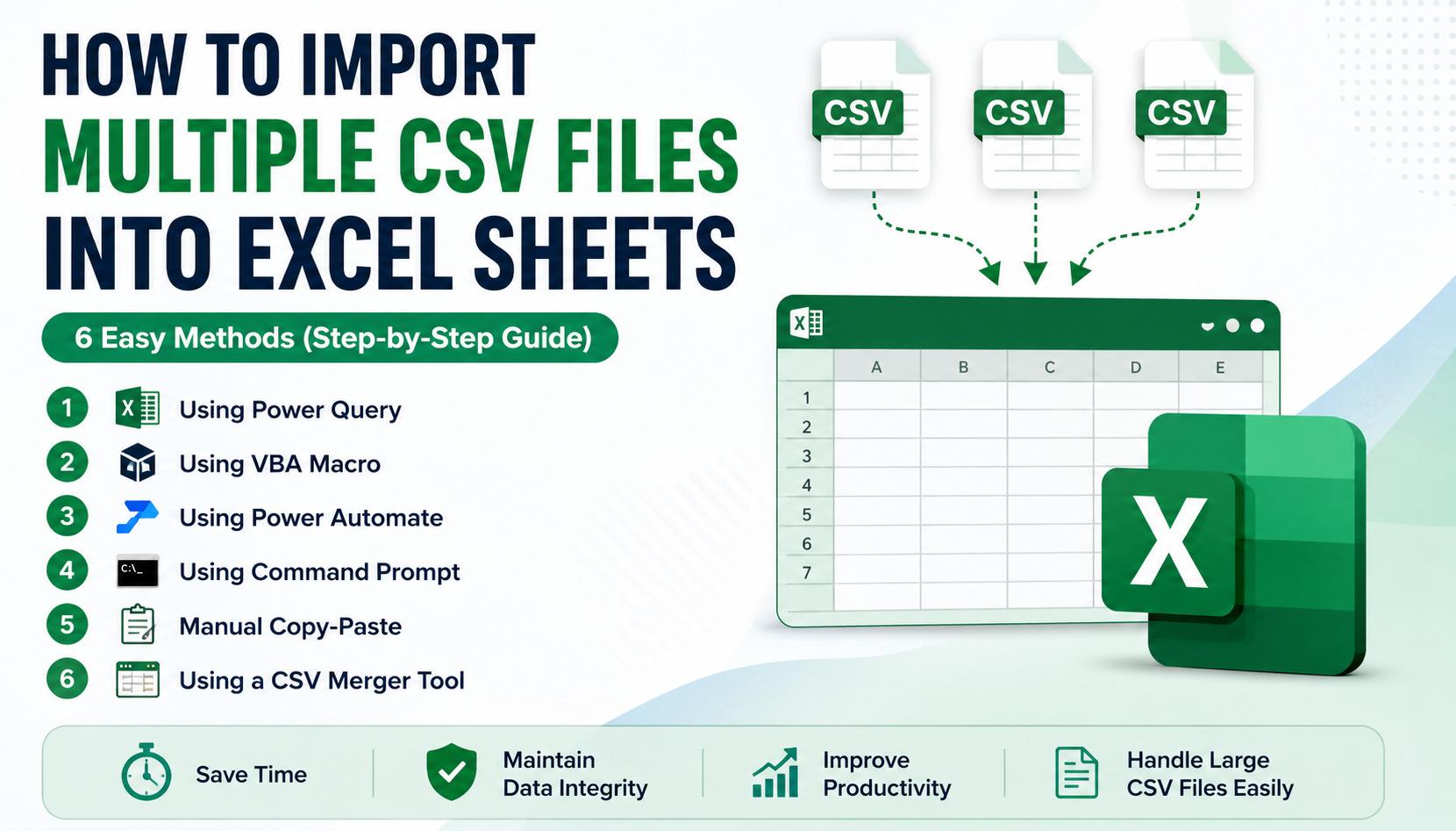
Managing multiple CSV files can become challenging when you need to analyze data in one Excel workbook. Opening and copying each CSV file manually is time-consuming, especially when dealing with hundreds or thousands of files. Fortunately, there are several ways to import multiple CSV files into Excel sheets quickly and efficiently.
In this guide, we'll explain different methods to import CSV files into Excel, along with their advantages and limitations. We'll also discuss an automated solution for handling large numbers of CSV files without data loss.
Why Import Multiple CSV Files into Excel?
There are several reasons why users need to import multiple CSV files into Excel sheets:
- Consolidate data from different sources.
- Prepare reports and dashboards.
- Analyze sales, financial, or customer data.
- Remove the need to open each CSV individually.
- Save time when handling hundreds of files.
Method 1: Import Multiple CSV Files into Excel Using Power Query
Power Query is one of the easiest built-in features available in Excel 2016 and later versions.
Steps
- Open Microsoft Excel.
- Go to Data > Get Data.
- Select From File > From Folder.
- Browse and select the folder containing all CSV files.
- Click Open.
- Excel displays all CSV files in the folder.
- Choose Combine & Load.
- Excel imports all CSV files into a single worksheet.
Pros
- No coding required.
- Fast for folders containing similar CSV files.
- Refresh option available.
Limitations
- Works best when every CSV has the same column structure.
- May require data transformation if formats differ.
Method 2: Import Multiple CSV Files into Separate Excel Sheets Using VBA
If you want every CSV file on its own worksheet, VBA can automate the process.
Steps
- Open Excel.
- Press Alt + F11.
- Insert a new module.
- Paste a VBA script to import all CSV files.
- Run the macro.
Excel creates a separate worksheet for every CSV file automatically.
Pros
- Good for repetitive tasks.
- Saves manual effort.
Limitations
- Requires VBA knowledge.
- Macros must be enabled.
- Not suitable for non-technical users.
Method 3: Import Multiple CSV Files Using Power Automate
Businesses using Microsoft 365 can automate CSV imports with Power Automate.
The workflow can:
- Monitor a folder.
- Detect newly added CSV files.
- Import data automatically.
- Store it in Excel or SharePoint.
This method is ideal for organizations receiving CSV files regularly.
Method 4: Import CSV Files Using Command Prompt
Advanced users can use batch scripts or Command Prompt to combine CSV files before opening them in Excel.
Example:
copy *.csv combined.csv
Then simply open the combined CSV in Excel.
Limitations
- Doesn't remove duplicate headers.
- Suitable only when all CSV files have identical structures.
Method 5: Copy and Paste Manually
For only a few CSV files:
- Open each CSV.
- Copy its contents.
- Paste into an Excel workbook.
- Repeat for remaining files.
Limitations
- Very time-consuming.
- High risk of human error.
- Not practical for large datasets.
Method 6: Use a Professional CSV Merger Tool
When you have dozens or even thousands of CSV files, manual methods become inefficient. In such situations, using a professional solution like SysTools CSV Merge Tool offers a faster and more reliable approach.
The software enables users to:
- Merge multiple CSV files into one.
- Preserve original formatting and data integrity.
- Handle large CSV files without limitations.
- Support CSV files with identical columns.
- Avoid manual copy-paste operations.
- Save the merged file for easy import into Excel.
Once the merged CSV is created, simply open it in Excel or import it using Power Query.
This approach is particularly useful for business professionals, analysts, and IT administrators managing large datasets.
Tips Before Importing Multiple CSV Files
Before importing your CSV files into Excel:
- Ensure all CSV files use the same delimiter.
- Verify column names are consistent.
- Remove blank rows if possible.
- Check encoding (UTF-8 is recommended).
- Keep backup copies of original files.
- Easily merge two CSV files with same columns
These steps help avoid formatting issues during import.
Common Problems During CSV Import
Different Column Structures
Power Query may fail or produce incorrect results if CSV files contain different columns.
Duplicate Headers
When combining files manually, header rows often appear multiple times.
Large File Size
Excel has row limitations. Extremely large CSV datasets may require splitting or merging before importing.
Encoding Issues
Special characters may display incorrectly if CSV files use different encoding formats.
Frequently Asked Questions
Can I import multiple CSV files into one Excel workbook?
Yes. Power Query allows you to import multiple CSV files into a single workbook. VBA can also import each CSV into separate worksheets.
Does Excel automatically combine multiple CSV files?
Only through Power Query's From Folder feature. Otherwise, manual or automated methods are required.
Can I import CSV files into separate Excel sheets?
Yes. VBA macros can create individual worksheets for each CSV file.
What is the easiest way to import multiple CSV files into Excel sheets?
Power Query is the easiest built-in option for most users. For handling hundreds or thousands of CSV files, a dedicated CSV merging tool provides greater speed and reliability.
Can I merge CSV files before importing them into Excel?
Yes. You can merge CSV files using Power Query, Command Prompt, or a professional CSV merger tool, and then open the merged file in Excel.
Conclusion
There are multiple ways to import multiple CSV files into Excel sheets, depending on your requirements. For occasional tasks, Power Query provides a simple and free solution. VBA and Power Automate are excellent choices for users who need automation, while manual methods work only for small datasets.
However, if you regularly work with hundreds of CSV files or large datasets, a professional solution like the SysTools CSV Merger Tool can significantly simplify the process. It merges CSV files efficiently while maintaining data integrity, allowing you to import the consolidated file into Excel with minimal effort.

 English