
How to Convert Image to PPT
Converting an image into a PowerPoint (PPT) presentation is a practical solution when you want to reuse visual content, scanned documents, or infographics in a structured and editable format. Whether you're preparing a business presentation, classroom slides, or client reports, turning images into PPT slides helps improve clarity, engagement, and professionalism.
In this guide, I’ll explain multiple methods to convert images into PowerPoint, including manual techniques, OCR-based solutions, AI tools, and best practices to get high-quality results.
What Does Converting Image to PPT Mean?
Image-to-PPT conversion involves transforming static image files such as JPG, PNG, or scanned documents into PowerPoint slides. Depending on the method used, this can either:
- Insert images directly into slides
- Extract text and convert it into editable content
- Automatically generate structured slides using AI
Method 1: Insert Image Directly into PowerPoint
This is the easiest method when you only need to display images as slides.
Steps:
- Open Microsoft PowerPoint
- Create a new blank presentation
- Click on Insert in the top menu
- Select Pictures and upload your image
- Resize and position the image
- Add text boxes if required
When to Use:
- When you don’t need editable text
- For visual presentations like portfolios or photo slides
Drawbacks:
- Content inside the image remains non-editable
- Requires manual slide formatting
Method 2: Convert Image to Editable PPT Using OCR
If your image contains text, you can extract it using OCR (Optical Character Recognition).
Using Microsoft OneNote:
- Open OneNote
- Insert the image
- Right-click on the image
- Select Copy Text from Picture
- Paste the extracted text into PowerPoint
- Organize it into slides
Using Online OCR Tools:
- Upload your image to an OCR website
- Extract the text
- Copy and paste into PowerPoint
- Format into slides
Best For:
- Scanned documents
- Handwritten or printed notes
Limitations:
- Formatting is not preserved
- Accuracy depends on image quality
Method 3: Use Google Slides for Conversion
Google Slides offers a simple way to convert images into presentation slides.
Steps:
- Open Google Slides
- Create a new presentation
- Click Insert and choose Image
- Upload your image
- Add text or shapes if needed
- Download the file as PPTX
Benefits:
- Free and cloud-based
- Easy sharing and collaboration
Method 4: Use AI Tools for Automatic Conversion
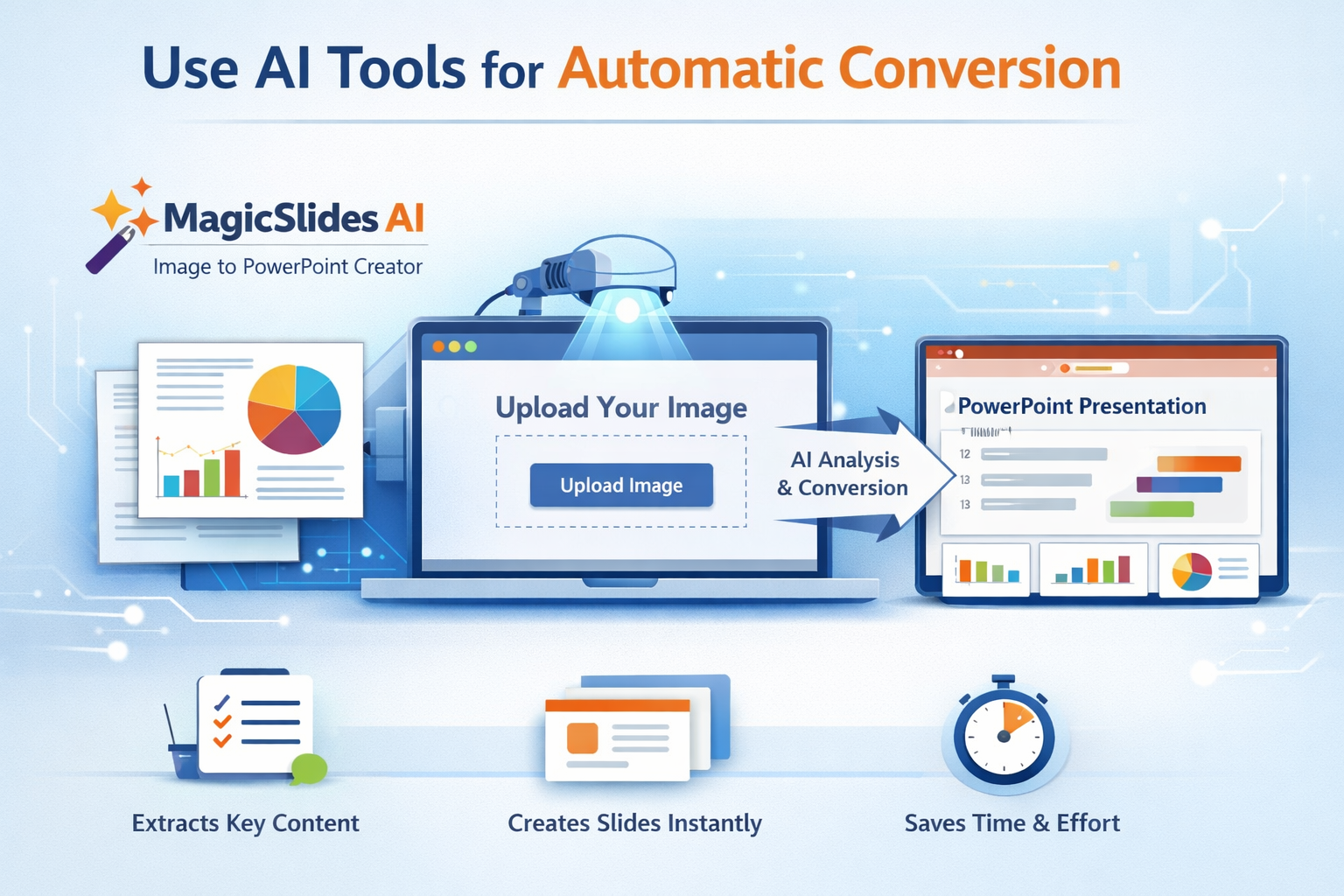
One of the fastest ways to convert images into structured presentations is by using AI-powered tools like MagicSlides AI Image to PowerPoint Maker. This tool simplifies the entire process by automatically analyzing the content within your image, extracting key text or visual elements, and converting them into well-organized PowerPoint slides. Instead of manually copying content or designing layouts, you get ready-to-use slides with headings, bullet points, and clean formatting generated in seconds.
To use it, you simply upload your image to MagicSlides AI, and the tool processes it using advanced algorithms to understand context and structure. It then creates a complete presentation that you can download as a PPT file. This method is especially useful for converting infographics, scanned documents, or visual notes into professional presentations while saving significant time and effort.
Method 5: Convert Multiple Images into Slides (Photo Album Feature)
If you have several images, you can quickly create a presentation using PowerPoint’s built-in feature.
Steps:
- Open PowerPoint
- Go to Insert tab
- Click Photo Album
- Select multiple images
- Arrange their order
- Click Create
Benefits:
- Automatically generates slides
- Ideal for bulk image conversion
Best Practices for High-Quality Conversion
- Use high-resolution images for better clarity
- Clean images before OCR for better text extraction
- Maintain consistent fonts and layouts
- Break large content into multiple slides
- Use PowerPoint Designer for better visuals
Common Challenges and How to Fix Them
Text extraction errors
Use clear and high-quality images
Poor formatting after conversion
Adjust fonts, spacing, and alignment manually
Large PPT file size
Compress images before inserting
Blurry visuals
Always use original image resolution
Real-World Use Cases
- Converting scanned reports into presentations
- Creating slides from infographics
- Turning handwritten notes into digital slides
- Preparing client-ready presentations from images
FAQs: Image to PPT Conversion
Q1. Can I convert an image into an editable PowerPoint file?
Yes, but you need OCR tools to extract editable text.
Q2. What is the easiest method?
Inserting images directly into PowerPoint is the simplest method.
Q3. Which method is best for accuracy?
Using OCR combined with manual editing provides the best results.
Q4. Can I convert multiple images into PPT at once?
Yes, using the Photo Album feature in PowerPoint.
Q5. Are there free tools available?
Yes, tools like Google Slides and OneNote are free options.
Final Thoughts
Converting an image to PPT can range from a simple drag-and-drop process to advanced AI-driven automation. The right method depends on whether you need editable content or just visual slides.
From my experience, combining OCR tools with manual formatting gives the most accurate and professional results, especially when working on business or client presentations.

 Turkish